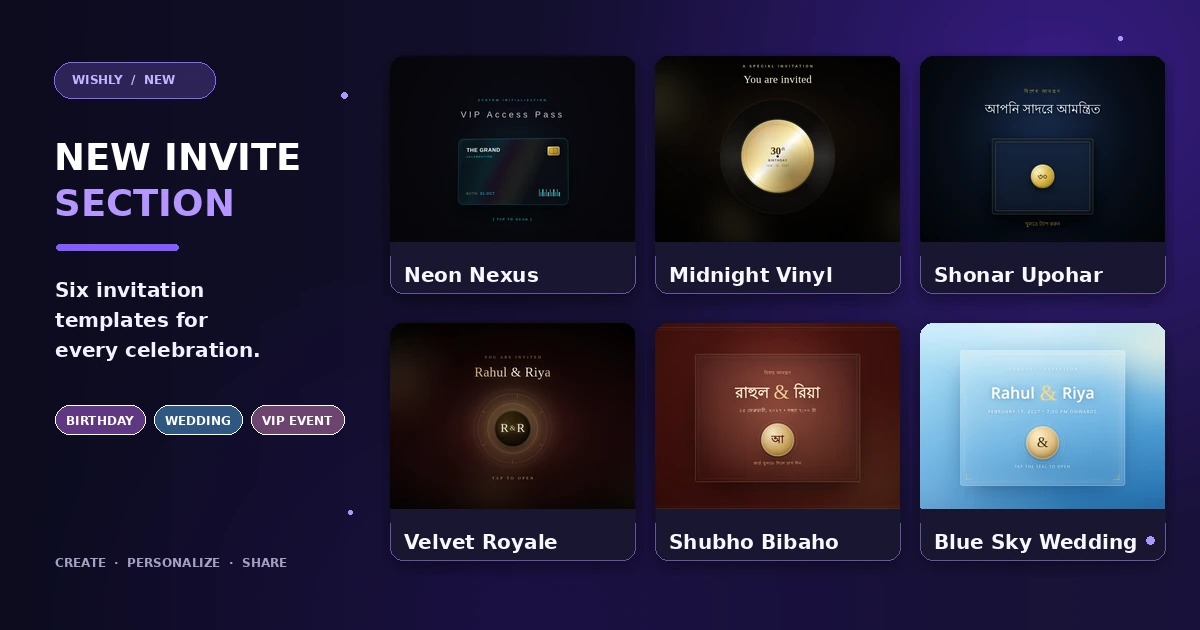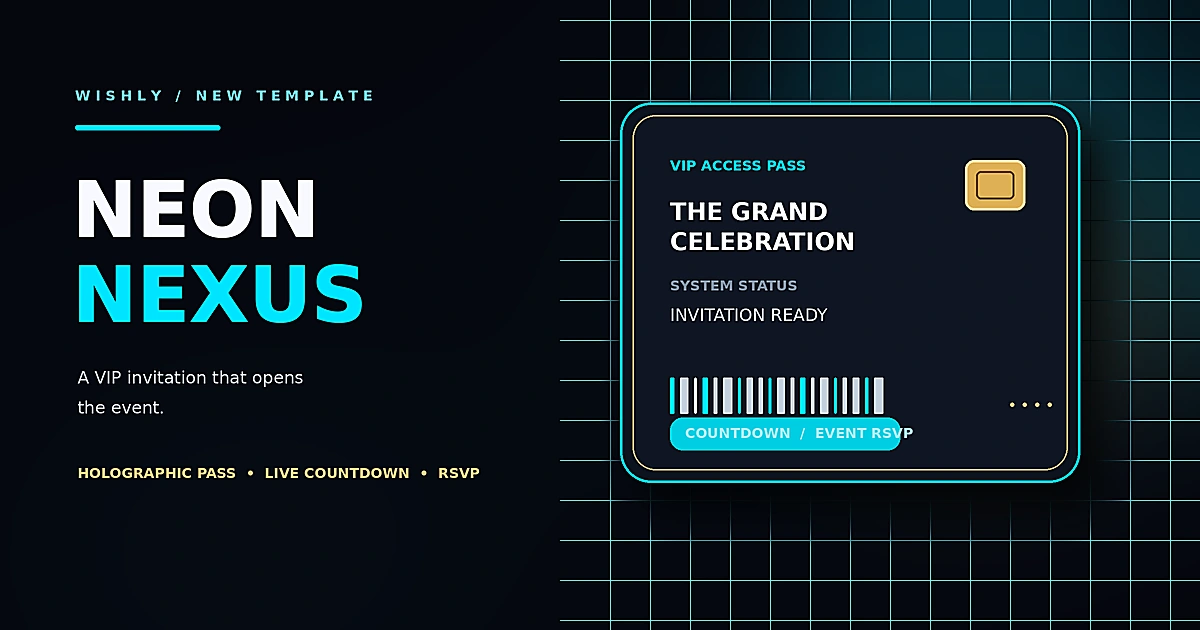
A VIP pass that opens the invitation
The first screen is designed like a premium digital access pass. A visitor taps the floating card to start the scan animation and reveal the full event page. The original futuristic look, gold accents, cyan glow and motion are kept as part of the template rather than flattened into a conventional invitation layout.
- Neon Nexus | VIP Invitationinvitation · Live demo

The event details guests need
After the reveal, the invitation brings the main event title and countdown together with date, time and dress code cards. A four-part evening itinerary gives guests a quick idea of what happens through the night. The gallery and venue section add visual context before guests reach the RSVP form.
- A live countdown tied to the saved event date and time
- A four-part itinerary with separately editable times and descriptions
- Five replaceable gallery photos plus an independent venue photo
- A venue section with a map-search link
Guest RSVP is connected to Wishly Visitor Replies
The RSVP form asks guests for their name, guest count and attendance choice. On the published website, submitting the form sends that information through Wishly’s existing Visitor Replies flow. The reply is recorded for the website owner in the dashboard; it does not create a separate RSVP database or change how replies work on other templates.
- Guests can choose Joyfully Accept or Regretfully Decline
- The guest count is included in the saved reply
- The generic floating Reply prompt is disabled only for this template to avoid duplicate reply forms
- A Builder preview is for editing and previewing; submit a real RSVP using the published link
Make it yours in Quick Setup and Edit mode
- 1
Set the event title and venue
Use Quick Setup to enter the celebration title and venue or host name.
- 2
Choose the event date and message
Set the local event date and time, then write the invitation line guests will see under the title. The same date updates the VIP pass, event details and countdown.
- 3
Review photos and itinerary
In Edit mode, replace each image independently and update the itinerary, dress code and venue description.
- 4
Preview, publish and share
Tap the VIP pass in Preview, inspect the full page on mobile, publish the invitation and share its link with guests.
Common questions
Can I use Neon Nexus for a birthday, gala or private party?
Yes. It is an event invitation layout, so you can edit the title, message, venue, schedule and dress code for the occasion.
Will guest RSVP responses reach my Wishly dashboard?
Yes. Guests who submit the form on your published website create a Visitor Reply containing their name, attendance choice and guest count.
Can I change the default event date?
Yes. Use the date and time field in Quick Setup. The supplied template starts with a future sample date of 31 October 2027. Replace it with your actual event date and local time before publishing.
Does this change the reply system on my other Wishly websites?
No. The custom RSVP handling is scoped to Neon Nexus. Other templates keep the existing floating Reply prompt and Visitor Replies behaviour.