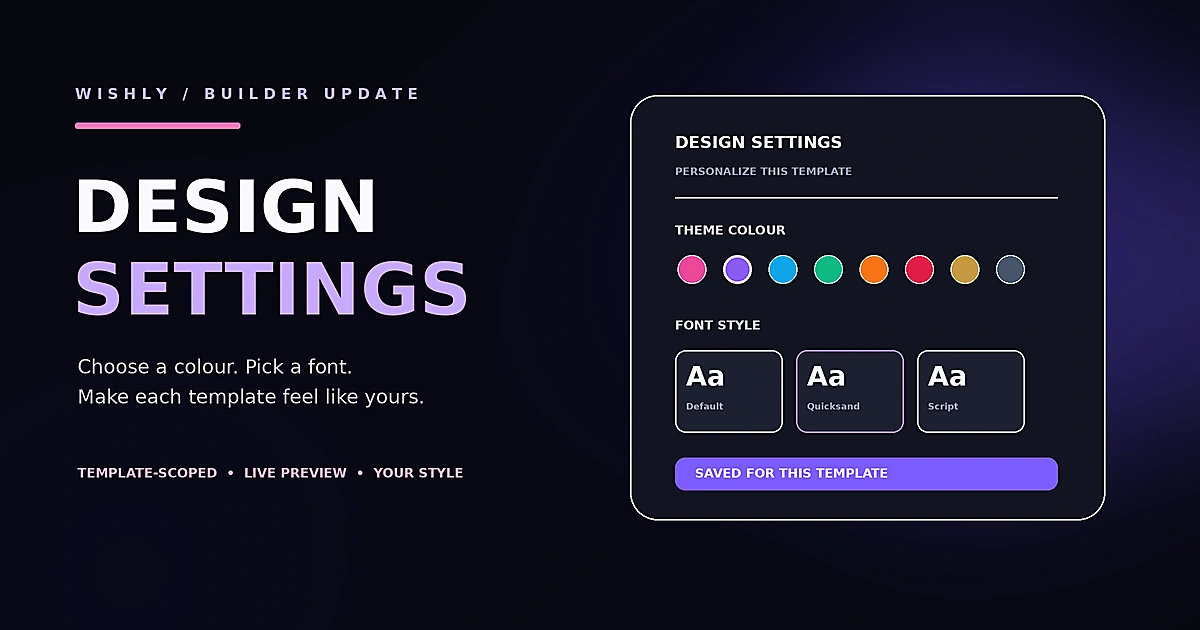
Design settings belong to the active template
Open Design settings from the Builder to personalize the website you are working on. Wishly stores these choices with that template’s own design settings—not as a site-wide preference—so changing the colour or font on one template does not recolour your other templates.
- Settings apply only to the template currently open in the Builder
- Each template keeps its own saved colour and font choices
- Your words, photos, videos and other content are not rewritten by a design change
A coordinated colour palette, not just a colour swap
Choose from eight ready-made colours or use the custom picker to enter your own HEX colour. Wishly derives supporting shades from your choice so the design feels coordinated rather than having every element painted with one flat colour.
- Eight presets: Rose, Violet, Ocean, Mint, Sunset, Ruby, Gold and Slate
- A custom colour picker for your own HEX value
- Buttons use a deeper, contrast-aware shade; accent labels and links use a readable related colour
- Highlights, card borders and soft colour details are adjusted to complement the main colour
- Regular paragraph text keeps a clear foreground colour for comfortable reading
Choose the typography that suits your template
Select Original, Quicksand, Dancing Script, Bubblegum Sans, Comic Neue or Caveat. The chosen font is applied within the active template, including its headings and text, while interface icons and editor controls keep their functional styling. Choose Original to restore the template’s own typography.
Settings stays easy to reach on every screen
On desktop, Design settings has its own place in the Builder navigation. On mobile, it is available from the three-line More menu, alongside Help & guide. When the Settings panel is open, the page behind it stays still; you can scroll inside the panel without the background moving.
- 1
On desktop
Choose Settings in the Builder top navigation.
- 2
On mobile
Tap the three-line More menu, then choose Design settings.
- 3
To read the guide
Open Help & guide from the same More menu.
No change, no new draft
Opening a template does not create a draft by itself. Wishly compares the current content and design with the template’s starting state and only begins autosaving when there is a real change. Choosing an option that is already selected is not treated as a new edit.
- Opening a template and leaving it untouched does not add it to Drafts
- Changing a word and restoring it before the first autosave keeps a new-template session clean
- A theme colour or font change counts as a real design edit
Reset means discard—not another autosave
Reset page restores the template’s original content and stops the autosave cycle. If an automatic save has already created a new draft during that same new-template session, Reset removes that temporary draft from the active website list after any in-flight save settles. Older saved drafts and published websites are kept safe.
- The page returns to its template defaults
- Reset does not create a replacement draft
- Only a temporary draft created in the current session is cleared from the active list
- Previously saved drafts and live websites are not removed
The familiar editing workflow stays the same
Choose a template, tap the text or element you want to edit, add your own content, and preview the result. These design controls are an extra layer around the existing Builder—not a replacement for the way you already create a Wishly website. When you are ready, save your draft or continue to Create Live Link.
Common questions
Will changing a colour affect my other templates?
No. Design settings are stored separately for the template you are currently editing. Other templates keep their own colours and fonts.
Will every word turn into the theme colour?
No. Wishly updates accents, links, buttons, highlights and supporting details. Main paragraph text keeps a readable foreground colour so the design remains comfortable to read.
Which fonts are available?
Original, Quicksand, Dancing Script, Bubblegum Sans, Comic Neue and Caveat.
Can I use a custom colour?
Yes. Choose one of the eight presets or use the custom colour picker to enter a HEX colour. Wishly builds coordinated supporting shades from it.
Can the page move while Settings is open?
The background page is locked while the Settings panel is open. The panel itself remains scrollable.
Does opening a template create a draft?
No. A real content or design change is needed before autosave creates a draft. Create Live Link is a separate, explicit publish action.
What happens when I press Reset page?
The template returns to its original content. A temporary draft created by the current new-template session is cleared from the active list; older saved drafts and published websites are kept.
Where is Help on mobile?
Open the three-line More menu. Help & guide is inside it, alongside Design settings.