What is a link preview?
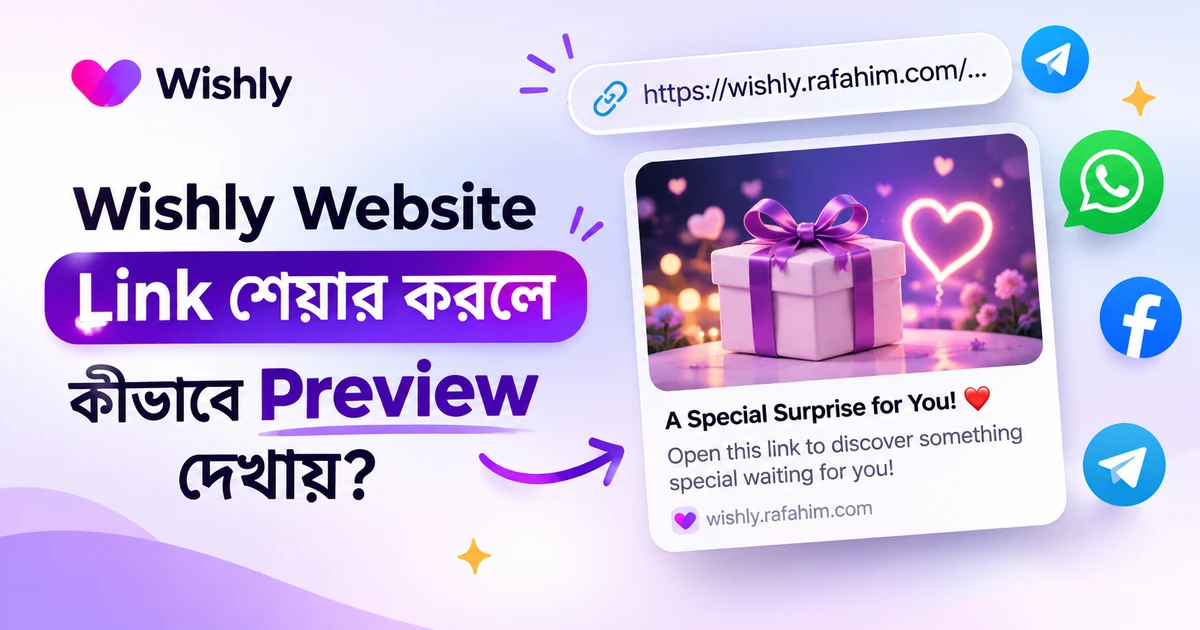
A link preview is the small card that may appear when you send a website link in a chat, such as WhatsApp or Messenger. It can show a picture, a title and a short line about the page. Instead of seeing only a web address, the person receiving your message gets a hint of what is waiting for them.
The preview is only an introduction. When someone taps the link, your complete published Wishly website opens with its own design, photos, message and interactive details.
Make the preview your own
When you reach the Publish page, open the optional Link Preview section. You can add three things:
- Preview title: a short heading that sets the mood for your surprise.
- Preview description: a little message that gives the recipient a reason to open the link.
- Preview photo: an image that suits the person or occasion.
How to set up your link preview
- 1
Create your Wishly website
Choose a template, add your message and photos, and check the website in Preview.
- 2
Open the Publish page
When your website is ready, continue to the Publish page and find the optional Link Preview section.
- 3
Add your title, description and photo
Write the words you want people to see and upload a suitable photo. You can check how the preview looks in the sample card shown there.
- 4
Publish or update your website
Save your changes by publishing or updating the website. Then share your website link with the person you have made it for.
Prefer to keep the suggested preview?
You do not have to customize every field. Leave a field empty and Wishly will use the matching information from your profile, such as your name, bio or photo. If that information is not available, Wishly will use its default for that part of the preview. Each field works independently, so you can add a custom photo while keeping the suggested title, for example.
You can also reset a customized preview and return to the default at any time from the Link Preview section.
A few simple tips
- Choose a photo that fits the occasion and looks clear at a glance.
- Keep the title short and warm, so the recipient knows the link is meant for them.
- Use the description for a small hint, not the whole surprise.
- Check the sample preview before publishing, especially after changing the photo.
Why might an old preview still appear?
Sometimes a chat app keeps showing a preview it has already seen, even after you update your Wishly website. This can happen because apps may remember an earlier preview for a while. Check that your latest changes are published, then try sharing the link again later. The way a preview appears can also vary from one app to another.
Common questions
Do I have to customize the link preview?
No. Link Preview is optional. Wishly can use your profile information or its default preview when you leave the fields empty.
Can I use my own photo?
Yes. Upload a JPG, PNG or WebP photo in the Link Preview section. Wishly adjusts it to fit the preview.
Can I change the preview after publishing?
Yes. Open your website’s Publish page again, make your changes and update the website.
Does tapping the preview open only the picture?
No. Tapping the link opens your complete published Wishly website.
Why do I still see the previous picture or title?
Some apps may keep an earlier preview for a while. Make sure your update is published and try sharing the link again later.