VIDEO TUTORIAL
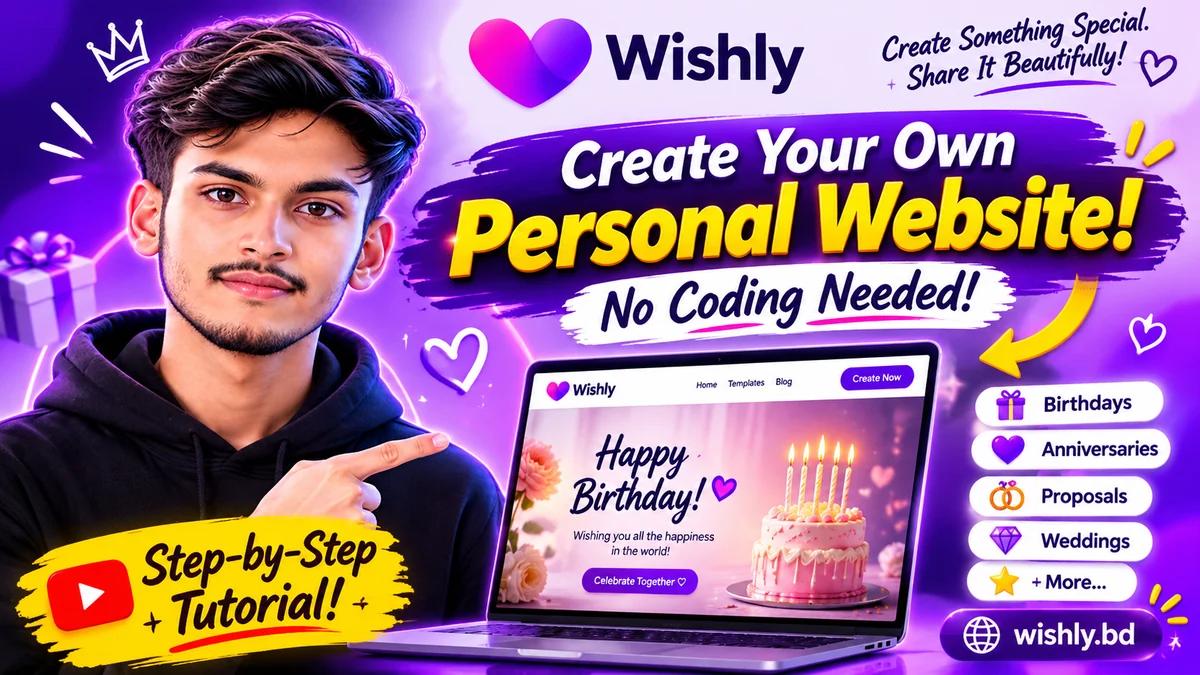
Surprise Someone With Your Own Website! | Create Your Own Website Without Coding | Wishly Tutorial
What kind of personal website can you make with Wishly?
Wishly is a platform for personal wish, surprise and invitation websites. You can choose a template for a birthday greeting, a surprise for a girlfriend or boyfriend, an anniversary, an online proposal, a wedding invitation, a sorry message, a miss-you note or a friendship greeting.
It is a ready-made website experience that needs no coding: you choose a template, personalise the parts it lets you edit, then publish it to get a shareable link.
Make your own Wishly website, step by step
- 1
Create an account or sign in
Open wishly.bd and create an account from Create or Sign up. If you already have one, sign in so your drafts and published websites are saved to your account.
- 2
Choose a template that fits your occasion
Browse categories such as birthday, anniversary, proposal, wedding, sorry, miss-you and friendship. Check each template’s preview and decide whether it suits the person and the occasion.
- 3
Add your own words and details in the visual editor
Tap or click any text or field the template lets you edit, then write your own message, name, greeting and details. Writing in your own voice makes the website feel far more personal.
- 4
Add photos, video or music if the template allows it
Where a template supports media, add suitable photos, a video message or music. Not every template has the same media options, so use the controls the editor shows for your chosen template.
- 5
Adjust the design and other available settings
If your template lets you change fonts, colours, layout, a countdown or other settings, adjust them as needed. Keep the message easy to read rather than adding unnecessary effects.
- 6
Preview it, including on mobile
Before publishing, open the preview and check spelling, names, photo crops and the order of sections. Most people open links on a phone, so make sure the page looks right on a small screen too.
- 7
Publish and share your website link
When everything looks right, publish. Your website gets its own link that you can send on WhatsApp, Messenger or any messaging app, or share as a QR code.
A few tips for a great surprise website
- Instead of a generic wish, add a memory or detail that means something to both of you.
- Use clear, suitable photos, and never publish someone else’s private photos or information without permission.
- Keep your writing in short paragraphs so it is easy to read on a phone.
- Open the link yourself before sending it, and share it at a time that suits the person.
- If a template has no audio or video option, do not assume the feature exists. Use the fields that template offers.
Can you edit the website after publishing?
Yes. After publishing you can edit your website again from the Wishly dashboard and republish it. The website keeps the same link, so you never need to send a new one for each change.
When you are done, send the link to the person you want to surprise. They can open it in their browser; there is no app to install.
Common questions
Do I need to know how to code to make a website with Wishly?
No. Choose a ready-made template and edit the available text and media fields in the visual editor. You do not write any HTML or CSS.
Can I make a Wishly website on my phone?
Yes. Wishly works on both phones and computers. When editing on a small screen, check the preview as well.
Can I add photos, video and music to every template?
Not every template has the same features. You can edit whichever photo, video, music or other fields the editor shows for your chosen template.
How do I share my Wishly website?
After you publish, send the link on WhatsApp, Messenger or another messaging app. You can also share it as a QR code.
Does the link change if I edit the website after publishing?
No. If you edit from the dashboard and republish, the same website link keeps working.
Does the person receiving it need the Wishly app?
No. They can open the link in the browser on their phone or computer.
Is the video in English?
The video tutorial is narrated in Bangla. This article gives the same steps in English, and you can switch to the Bangla article using the language toggle at the top.