What is new
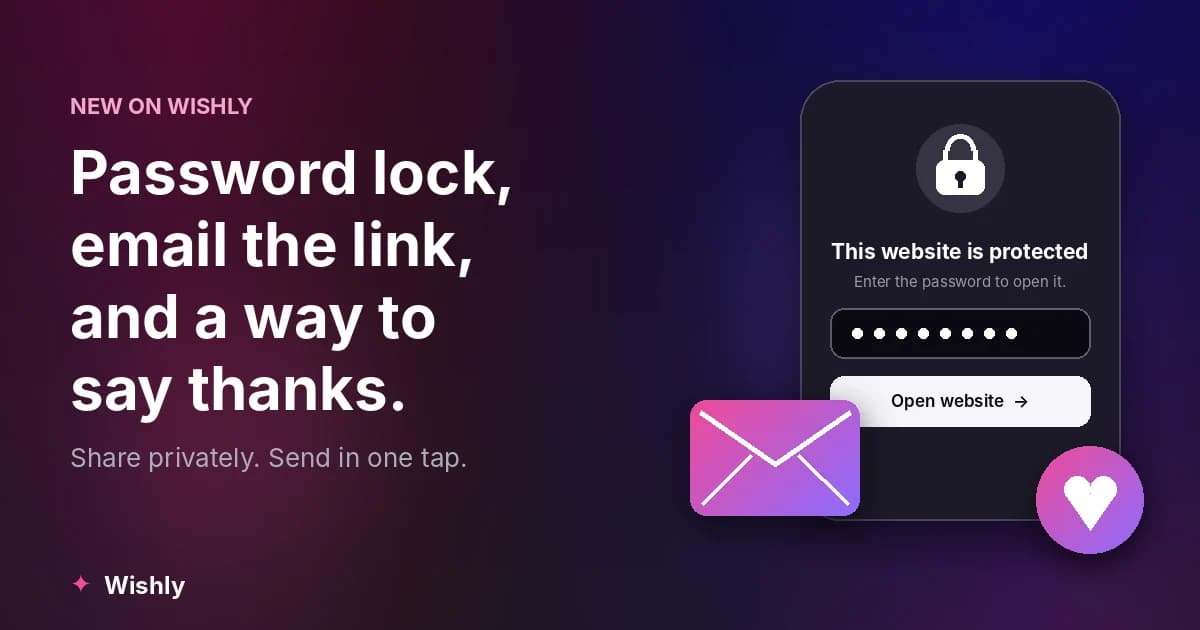
- Password protection: your website opens only after the visitor types the password you chose
- Send link by email: Wishly mails the live link to one person in a beautiful branded email
- Donate: an optional way to help keep Wishly free for everyone. There is no pressure at all
Lock your website with a password
When you publish a website, you can now give it a password. Anyone who opens the link sees a small lock screen first, and the website opens only after they enter the right password. Leave the password empty and your website stays open to anyone with the link, just like before.
- 1
Open the publish step
Finish your website and go to the step where you choose your link.
- 2
Find the password box
Type a password in the Website password field. Use 4 to 64 characters. Use the eye button if you want to check what you typed.
- 3
Publish or update
Press publish. The page will show Password is on once it is saved.
- 4
Share the password separately
Send the link in one message and the password in another, ideally through a different app.
How the password lock works
- Your website content is not placed in the page itself. It is loaded only after the correct password is entered.
- Your password is stored as a salted one-way hash, never as plain text, so Wishly cannot read it back to you.
- Each website has its own lock. Opening one protected website never opens another.
- After a correct password, that device stays unlocked for 30 days, so your person does not have to type it again every time.
- If you change the password, every earlier unlock stops working and everyone needs the new one.
Change or remove the password later
You are not stuck with your first choice. Open the publish step of the same website, then change the password or choose to remove it. The new setting is applied when you press update, and your link stays the same.
- Change it if the password was shared with the wrong person
- Remove it once the surprise is over and you want the website open to everyone
Send the link by email
Instead of copying the link into a chat, you can now let Wishly email it for you. The person receives a clean, branded email with your link, and replies go back to you.
- 1
Publish your website first
The email option works for live websites only.
- 2
Open Send link by email
You will find it on the same page as your link and QR code.
- 3
Fill in the details
Add their name and email address. You can also write a short personal note of up to 300 characters.
- 4
Press send
Wishly emails the link and shows a confirmation when it is sent.
Email and password together
If your website has a password, the email does not include it. Instead, it tells the person to ask you for the password. This keeps the link and the password apart, so one message alone is never enough to open your website.
- Email sends the link
- You send the password in a separate message, by call, or in person
Sending limits
To stop this from being used for spam, the email feature has simple limits. For a normal surprise you will never notice them.
- Up to 10 emails per hour and 30 per day from your account
- The same website can be emailed to the same address up to 3 times a day
- The address must be a real, valid email address
Donate, only if you feel like it
Every template, link and QR code on Wishly is free, and that is not changing. Hosting, storage and servers still cost money, so there is now a donation page for anyone who wants to help. Feel free to ignore it. Wishly works exactly the same whether you donate or not.
- Donate in US dollars or in Bangladeshi Taka
- Choose any amount you like, there is no minimum
- Pay securely on the payment gateway. You complete the payment there, not on Wishly
- A receipt is emailed to you after your payment goes through
- Donations are voluntary and non-refundable
Where your support goes
- Hosting and server costs, so every website opens fast
- More hand-made templates and new features
- Keeping Wishly free and ad-free for everyone
Good to know
- A password is a simple lock for sharing a surprise, not a bank-level vault. Choose something your person can type easily, and do not reuse a password from your email or bank.
- Anyone who has both the link and the password can open the website and can pass them on.
- Link previews in apps like WhatsApp show only the preview details you set, not the locked content.
Common questions
How do I put a password on my Wishly website?
In the publish step, type a password in the Website password field (4 to 64 characters) and publish or update. The page then shows Password is on.
Can I remove or change the password later?
Yes. Open the publish step of the same website, change the password or choose to remove it, then press update. Your link stays the same.
Does the email include my password?
No. If your website is protected, the email asks the person to get the password from you, so share it separately.
Do I have to donate to use Wishly?
No. Wishly stays free to use whether or not you donate. The donation page is only for people who want to help.
Can I donate in Bangladeshi Taka?
Yes. You can donate in US dollars or Bangladeshi Taka on the donation page and you will get a receipt by email.
How long does a visitor stay unlocked?
After entering the correct password, that device stays unlocked for 30 days. Changing the password locks it again.